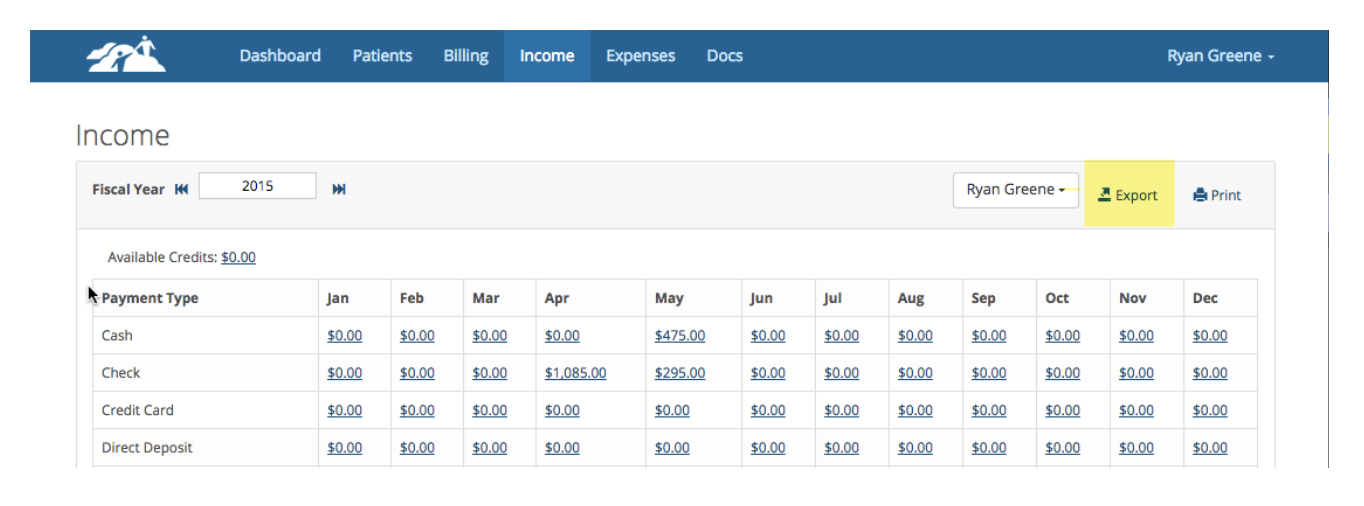
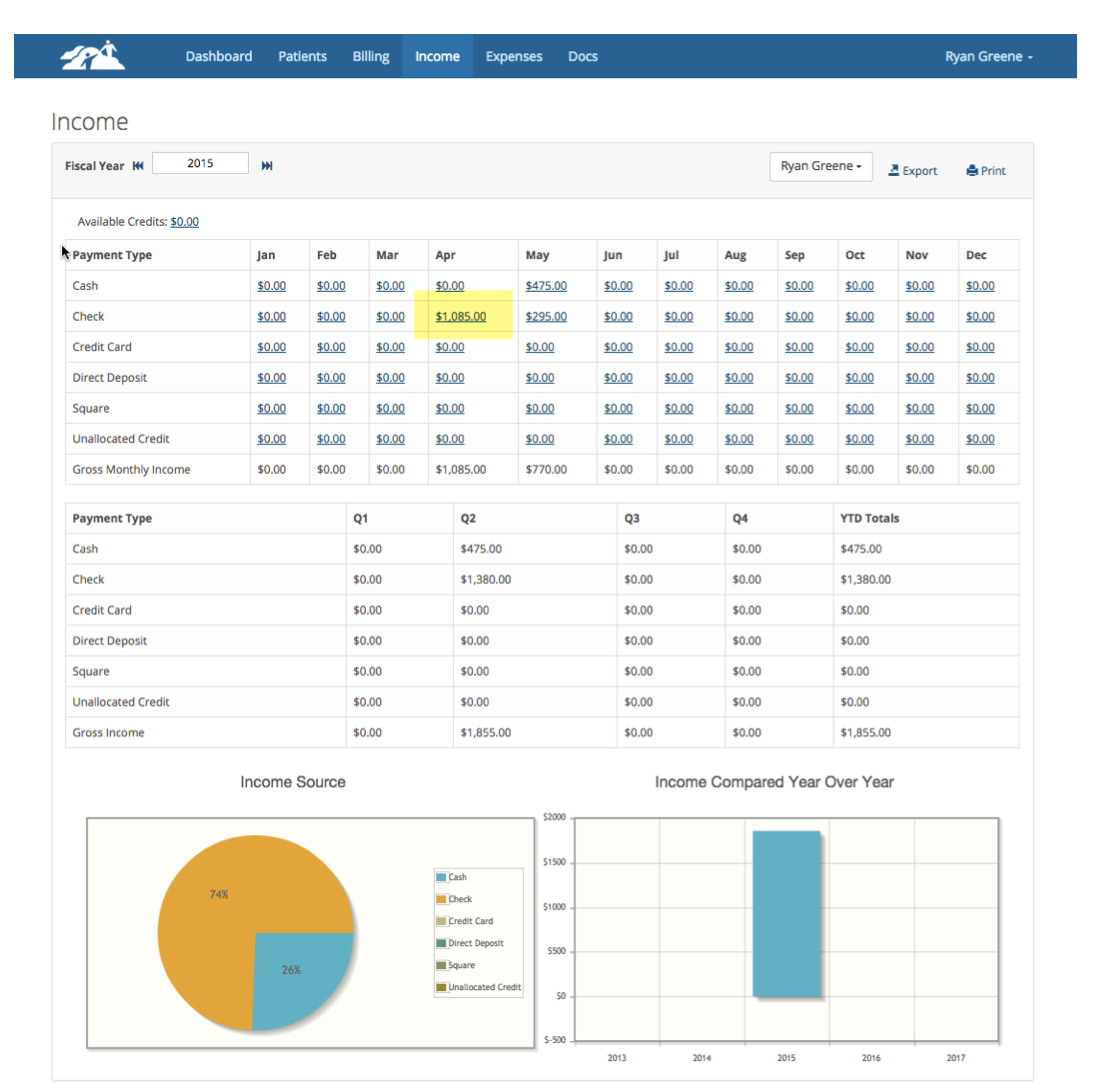
The Income tracks the gross income for a Practice and/or individual Clinician(s). You can see how much is being taken by each payment type (Cash, Check, Credit Card, etc.). You can see income totals for the month, quarter and year to date. If your Practice has more than one Clinician or Practice location, you can switch views using the drop down next to the Export button.
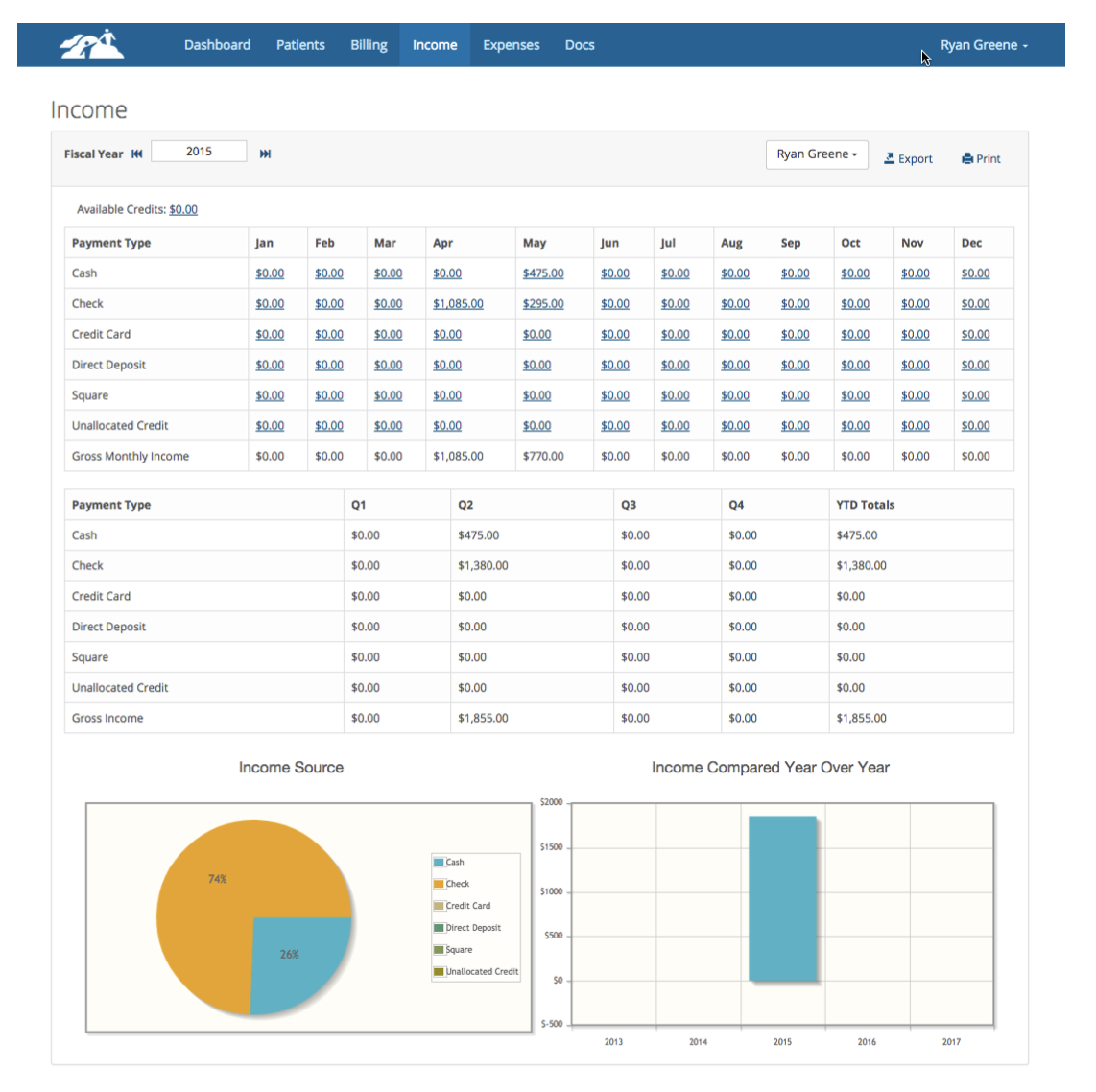
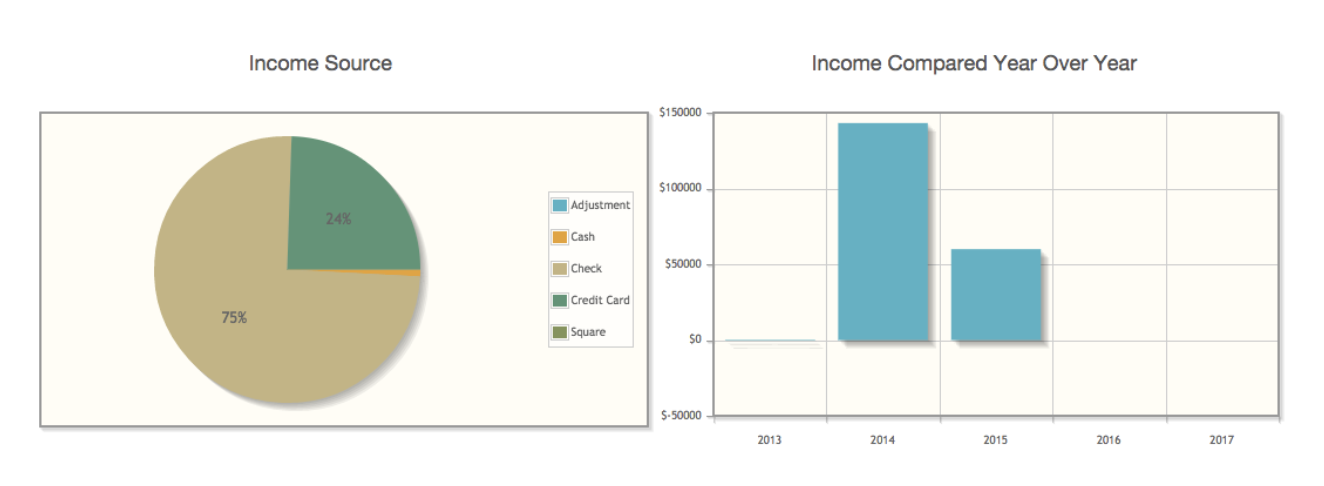
The graphs at the bottom provide a visual representation of payment type percentages and income year over year.
Multi-Clinician Income
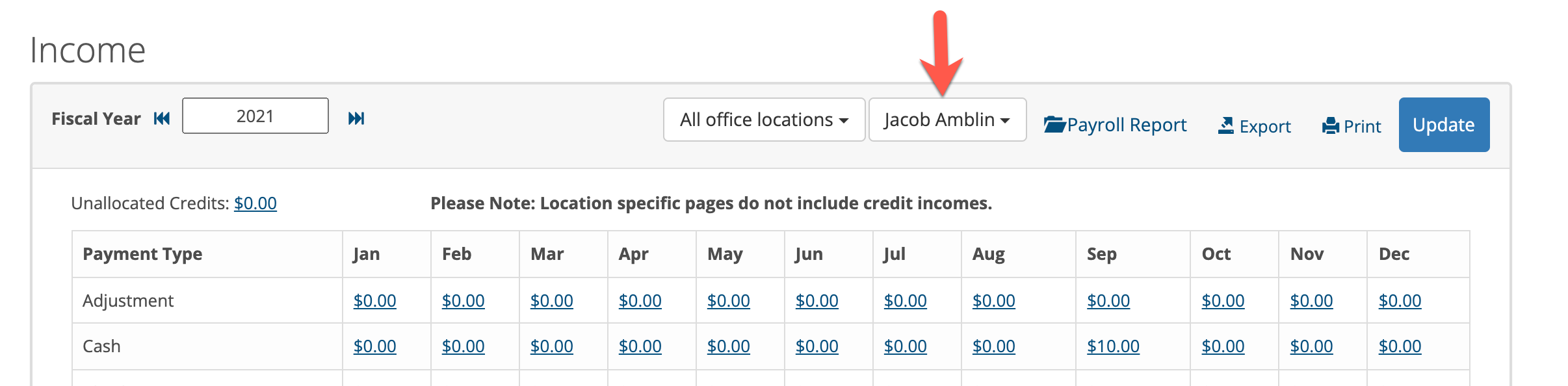
If there are multiple clinicians working within the Practice, you can view their individual income pages by clicking on the clinician drop down. Choose the clinician you wish to view. You can also see the income for the entire practice by choosing All Clinicians.
IMPORTANT: When you switch clinicians or choose all clinicians, make sure you click the blue 'Update" button to get the latest income figures. All income pages must be updated manually and periodically so they show the correct dollar amounts.
Viewing Income Details
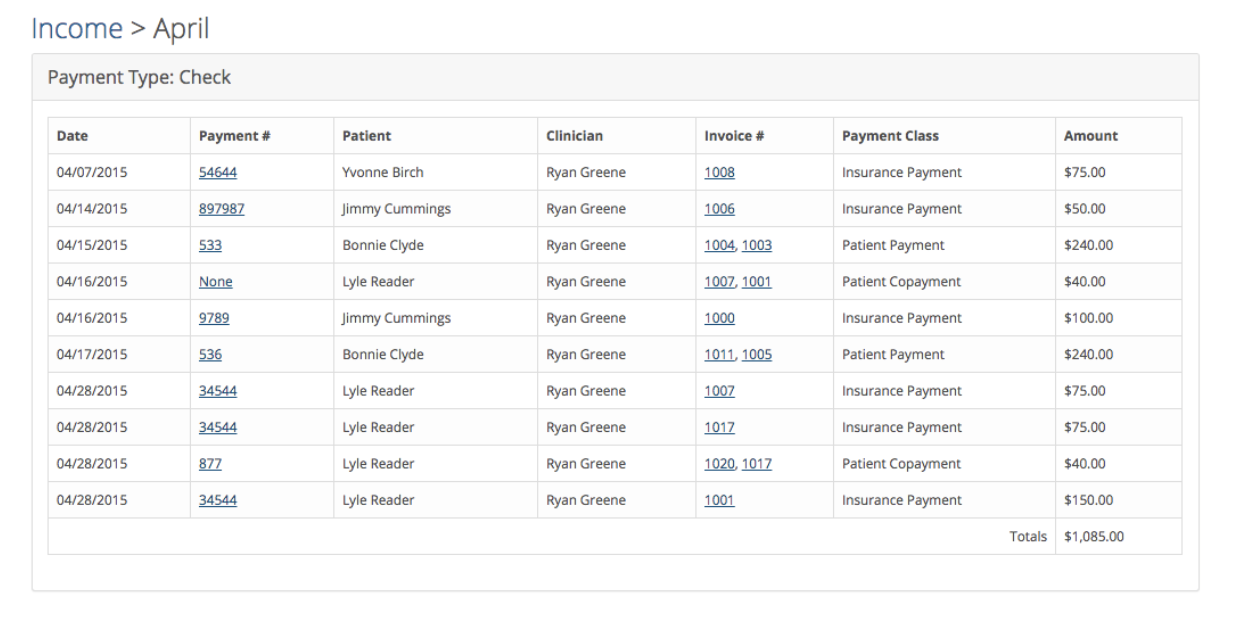
If you need to drill down a bit to see where the dollars came from for a payment type, click on the underlined dollar amount as shown in the example below.
Here is what the break down looks like for the checks in April.
Patient Credits
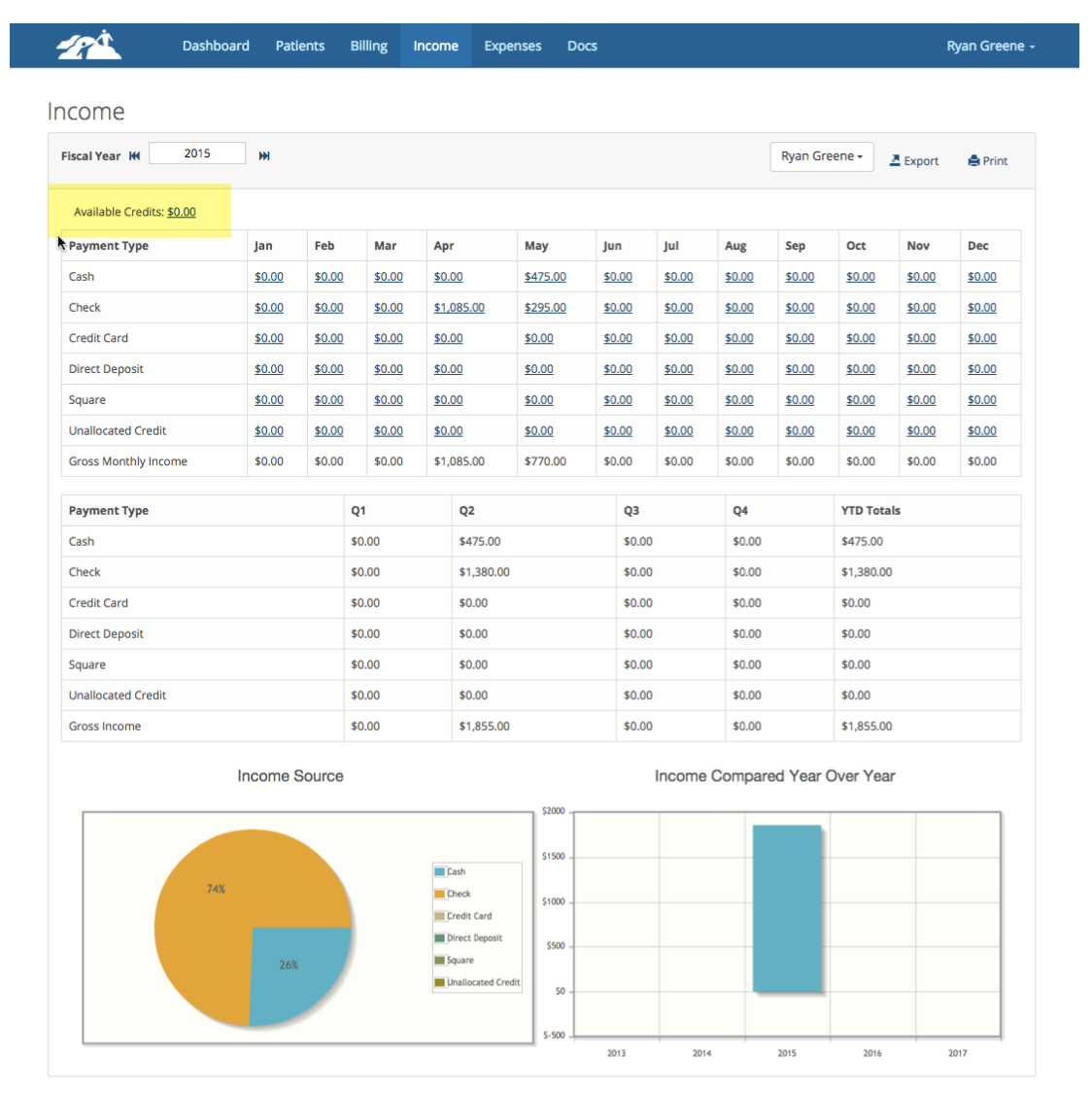
If any clients have a credit, you can view that near the upper left corner of the page. (see the highlighted area below). A credit is created when you take a payment in advance.
Export Income Information
You can export the income information to an Excel compatible spreadsheet file. This will come in handy during tax preparation time. You can also print the information to paper.